
AI · Uses credits
AI Bauhaus art generator
Arrange simple geometry and a few strong colors into a clear visual composition.
AI generation requires sign-in, available credits and a compatible published model.
Your canvas
BauhausRoom for your next idea.
Choose a style and describe what you imagine. Your original artwork will appear here.
Reinterpret your image with an AI model, a description and credits.
How to use this tool
This direction gives circles, rectangles and negative space a central role. Describe the relationship between a few shapes and their relative size so the image has an organizing idea rather than a random collection of geometry.
Choose your starting point
Describe a subject, setting and mood. Sign in and choose an available AI model.
Shape the result
Choose the canvas ratio and refine your description. The selected model determines the credit cost and available settings.
Keep what you made
Compare the result with your source when available, then download the image before leaving or refreshing the page.
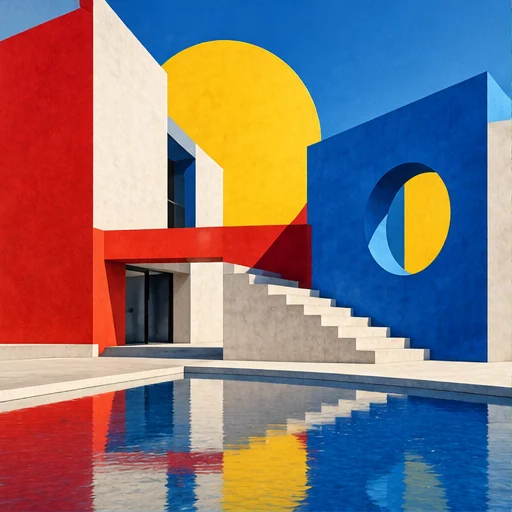
Style reference
A prompt to get you started
One large black circle balanced by a red rectangle and two small blue discs on warm cream, clear margins and no lettering.
Limit the composition to three or four main shapes. Add final labels or typography separately when exact placement matters.
What you can make
Explore abstract poster and graphic background concepts.
Test visual balance through scale, asymmetry and restrained color accents.
Questions about this tool
Can I move the generated shapes as separate vector objects?
No. The tool outputs a single raster image. It does not export editable geometric objects, font layouts or a vector document.
What do I need to use an AI tool?
Sign in, choose a compatible published model and have enough credits for its displayed price. Available models and image sizes may vary; AI generation is not a free fixed effect.
When is my image sent, and is the history saved?
Your image or description is sent when you run the tool. Fixed effects run on our server; AI requests go to the selected model provider. The on-page history lasts only for this session, so download results before refreshing or leaving.
Explore related tools
Browse all art tools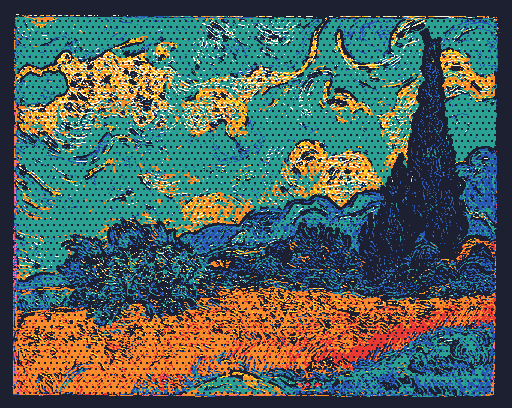
2D art
Photo to pop art converter
Make the colors, contours and dot patterns of a familiar photo stand out.
Open tool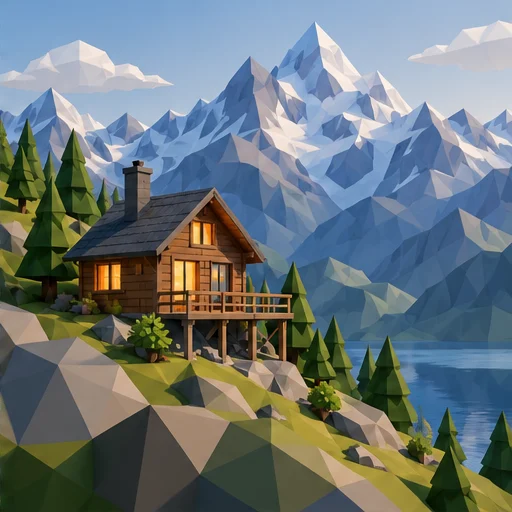
3D-inspired image
AI low poly art generator
Let clear facets and simple forms give your subject a geometric appearance.
Open tool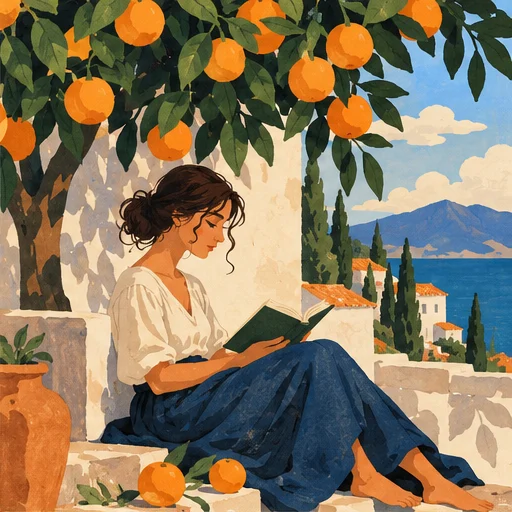
2D art
AI illustration generator
Turn a story or abstract idea into a visual scene with a clear point of view.
Open tool